Storage & LVM
Adding disks, growing LVM volumes, swap and other storage tasks.
- Linux - How to Increase the size of a Linux LVM by adding a new disk
- Linux - Increase the size of a LVM Partition
- Linux - How to Decrease an LVM Partition
- Linux - Re-Mapping Drives or Combining Drives
- RedHat - Install NFS Shares
- Bash - Add Symbolic Links Subdirectories
- Linux - How to use rClone
Linux - How to Increase the size of a Linux LVM by adding a new disk
Important Notes: Be very careful when working with the commands in this article as they have the potential to cause a lot of damage to your data. If you are working with virtual machines make sure you take a snapshot of your virtual machine beforehand, or otherwise have some other form of up to date backup before proceeding. It could also be worth cloning the virtual machine first and testing out this method on the clone.
Throughout my examples I will be working with a VMware virtual machine running Debian 6, this was set up with a 20gb disk and we will be adding a new 20gb disk for a total LVM size of 40gb.
Although my examples make use of virtual machines, this method would work with a physical server as well if you have added a new physical disk in and want to use that to expand the LVM.
Identifying the partition type
As this method focuses on working with LVM, we will first confirm that our partition type is actually Linux LVM by running the below command.
fdisk -l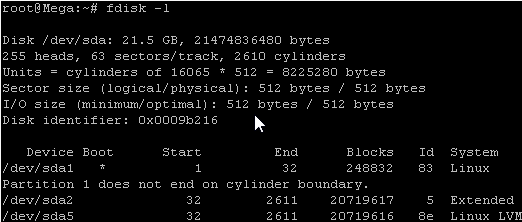
As you can see in the above image /dev/sda5 is listed as “Linux LVM” and it has the ID of 8e. The 8e hex code shows that it is a Linux LVM, while 83 shows a Linux native partition. Now that we have confirmed we are working with an LVM we can continue. For increasing the size of a Linux native partition (hex code 83) see this article.
Below is the disk information showing that our initial setup only has the one 20gb disk currently, which is under the logical volume named /dev/mapper/Mega-root – this is what we will be expanding with the new disk.
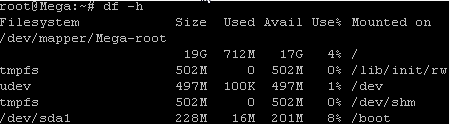
Note that /dev/mapper/Mega-root is the volume made up from /dev/sda5 currently – this is what we will be expanding.
Adding a new virtual hard disk
First off we add a new disk to the virtual machine. This is done by right clicking the virtual machine in vSphere, selecting edit settings and then clicking the “Add…” button which is used to add hardware to the virtual machine.
Select hard disk and click next.
Select create a new virtual disk and click next.
Select the disk size you want to add, I will be using 20gb as previously mentioned. I have also selected to store the disk with the virtual machine, it will store on the same datastore as the virtual machines files, this will be fine for my test purposes. Click next once complete.
Select next on the advanced options page.
Review everything and click finish once you have confirmed the settings.
You will then see the new disk under the hardware devices tab and it will be labelled with (adding) which means it will not apply until you click OK, so click OK to complete the process.
Detect the new disk space
In my test for this example, as soon as I added the additional disk in through VMware it displayed through “fdisk -l” for me, you can see the second disk labelled /dev/sdb (I have cropped out the information on /dev/sda1 to make it less cluttered here). It is also worth noting that it shows as not containing a valid partition table, we are about to set this up.
This may not however be the case for you, to avoid reboot you may need to rescan your devices, you can try this with the below command. Note that you may need to change host0 depending on your setup.
echo "- - -" > /sys/class/scsi_host/host0/scanIf you aren't sure which host number to use, rescan all of them:
for h in /sys/class/scsi_host/host*; do echo "- - -" > $h/scan; done
lsblk
If you have issues detecting the new disk, just perform a reboot and it should then display correctly.
Partition the new disk
We now need to partition the new /dev/sdb disk so that it can be used, this is done by using fdisk.
fdisk /dev/sdbThis should provide us with the below prompt, the inputs I have entered in are shown in bold.
‘n’ was selected for adding a new partition.
root@Mega:~# fdisk /dev/sdb
Command (m for help): n
‘p’ is then selected as we are making a primary partition.
Command action
   e   extended
   p   primary partition (1-4)
p
As this is a new disk, we do not yet have any partitions on it so we will use partition 1 here.
Partition number (1-4): 1Next we press the enter key twice, as by default the first and last cylinders of the unallocated space should be correct.
First cylinder (1-2610, default 1): "enter"
Using default value 1
Last cylinder, +cylinders or +size{K,M,G} (1-2610, default 2610): "enter"
Using default value 2610
‘t’ is selected to change to a partitions system ID, in this case we change to ’1′ automatically as this is currently our only partition.
Command (m for help): t
Selected partition 1
The hex code ’8e’ was entered as this is the code for a Linux LVM which is what we want this partition to be, as we will be joining it with the original Linux LVM which is currently using /dev/sda5.
Hex code (type L to list codes): 8e
Changed system type of partition 1 to 8e (Linux LVM)
On newer fdisk versions or GPT disks, the hex code prompt is "Partition type or alias". Enter lvm instead of 8e.
‘w’ is used to write the table to disk and exit, all changes that have been done will be saved and then you will be exited from fdisk.
Command (m for help): w
The partition table has been altered!

Calling ioctl() to re-read partition table.
Syncing disks.
By using “fdisk -l” now you will be able to see that /dev/sdb1 is listed, this is the new partition created on our newly added /dev/sdb disk and it is currently using all 20gb of space.
fdisk -l /dev/sdb
partprobe -s
If /dev/sdb1 does not show up, run partprobe -s to re-read the partition table, or reboot.
Increasing the logical volume
Next we will use the pvcreate command to create a physical volume for later use by the LVM. In this case the physical volume will be our new /dev/sdb1 partition.
root@Mega:~# pvcreate /dev/sdb1
  Physical volume "/dev/sdb1" successfully created
Now we need to confirm the name of the current volume group using the vgdisplay command. The name will vary depending on your setup, for me it is the name of my test server. vgdisplay provides plenty of information on the volume group, I have only shown the name and the current size of it for this example.
root@Mega:~# vgdisplay
  --- Volume group ---
  VG Name               Mega
  VG Size               19.76 GiB
Now using the vgextend command, we extend the ‘Mega’ volume group by adding in the physical volume of /dev/sdb1 which we created using the pvcreate command just before.
root@Mega:~# vgextend Mega /dev/sdb1
  Volume group "Mega" successfully extended
Using the pvscan command we scan all disks for physical volumes, this should confirm the original /dev/sda5 partition and the newly created physical volume /dev/sdb1
root@Mega:~# pvscan
  PV /dev/sda5   VG Mega   lvm2 [19.76 GiB / 0    free]
  PV /dev/sdb1   VG Mega   lvm2 [19.99 GiB / 19.99 GiB free]
  Total: 2 [39.75 GiB] / in use: 2 [39.75 GiB] / in no VG: 0 [0   ]
Next we need to increase the logical volume with the lvextend command (rather than the physical volume which we have already done). This means we will be taking our original logical volume and extending it over our new disk/partition/physical volume of /dev/sdb1.
Firstly confirm the name of the logical volume using lvdisplay. The name will vary depending on your setup.
root@Mega:~# lvdisplay
  --- Logical volume ---
  LV Name                /dev/Mega/root
  LV Size                18.91 GiB
The logical volume is then extended using the lvextend command. We are extending the original logical volume of /dev/Mega/root over the newer /dev/sdb1
root@Mega:~# lvextend /dev/Mega/root /dev/sdb1
  Extending logical volume root to 38.90 GiB
  Logical volume root successfully resized
If you like you can then run vgdisplay and lvdisplay again to confirm the size of the volume group and logical volume respectively, I have done this and I now have the following.
vgdisplay
lvdisplay
LV Size 38.90 GiB
VG Size 39.75 GiBHowever if you run a “df” command to see available disk space it will not have changed yet as there is one final step, we need to resize the file system using the resize2fs command in order to make use of this space.
root@Mega:~# resize2fs /dev/Mega/root
resize2fs 1.41.12 (17-May-2010)
Filesystem at /dev/Mega/root is mounted on /; on-line resizing required
old desc_blocks = 2, new_desc_blocks = 3
Performing an on-line resize of /dev/Mega/root to 10196992 (4k) blocks.
The filesystem on /dev/Mega/root is now 10196992 blocks long.
Alternatively if you’re running the XFS file system (default as of RedHat/CentOS 7) you can grow the file system with “xfs_growfs /dev/Mega/root”.
xfs_growfs /dev/Mega/rootNot sure which file system you have? Check with:
df -Th /Rather than resizing the file system manually, you could instead use the -r option of the lvextend command which will automatically resize the file system to make use of the additional disk space.
lvextend -r -l +100%FREE /dev/Mega/rootThis extends the logical volume into all free space in the volume group and resizes the file system (ext4 or XFS) in one step.
The resize took a minute or so to complete (it will depend on the disk speed and size), running the “df” command now shows the correct disk space for /dev/mapper/Mega-root
df -hLinux - Increase the size of a LVM Partition
This will cover how to increase the disk space for a VMware virtual machine running Linux that is using logical volume manager (LVM). Firstly we will be increasing the size of the actual disk on the VMware virtual machine, so at the hardware level – this is the VM’s .vmdk file. Once this is complete we will get into the virtual machine and make the necessary changes through the operating system in order to take advantage of the additional space that has been provided by the hard drive being extended. This will involve creating a new partition with the new space, expanding the volume group and logical group, then finally resizing the file system.
Important Note: Be very careful when working with the commands in this article as they have the potential to cause a lot of damage to your data. If you are working with virtual machines make sure you take a snapshot of your virtual machine beforehand, or otherwise have some other form of up to date backup before proceeding. Note that a snapshot must not be taken until after the virtual disk has been increased, otherwise you will not be able to increase it. It could also be worth cloning the virtual machine first and testing out this method on the clone.
Prerequisites: As this method uses the additional space to create a primary partition, you must not already have 4 partitions as you will not be able to create more than 4. If you do not have space for another partition then you will need to consider a different method, there are some others in the above list.
Throughout examples we will be working with a VMware virtual machine running Debian 6, this was set up with a 20gb disk and we will be increasing it by 10gb for a total final size of 30gb.
Identifying the partition type
As this method focuses on working with LVM, we will first confirm that our partition type is actually Linux LVM by running the below command.
fdisk -l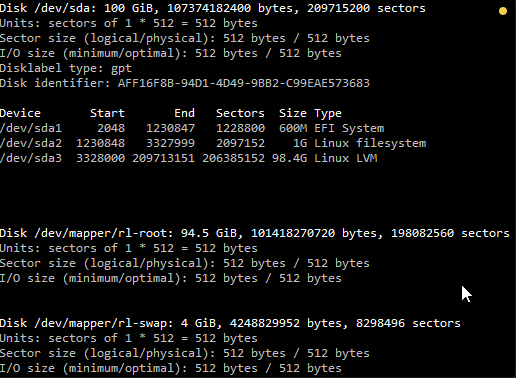
As you can see in the above image /dev/sda3 is listed as “Linux LVM” and it has the ID of 8e. The 8e hex code shows that it is a Linux LVM, while 83 shows a Linux native partition. Now that we have confirmed we are working with an LVM we can continue. For increasing the size of a Linux native partition (hex code 83).
Below is the disk information showing that our initial setup only has the one 95gb disk currently, which is under the logical volume named /dev/mapper/rl-root – this is what we will be expanding with the new disk.
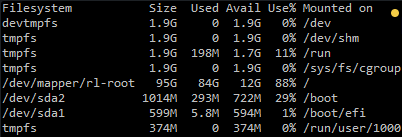
Note: that /dev/mapper/rl-root is the volume made up from /dev/sda3 currently – this is what we will be expanding.
Increasing the virtual hard disk
First off we increase the allocated disk space on the virtual machine itself. This is done by right clicking the virtual machine in vSphere, selecting edit settings, and then selecting the hard disk. In the below image I have changed the previously set hard disk of 100gb to 350gb while the virtual machine is up and running. Once complete click OK, this is all that needs to be done in VMware for this process.
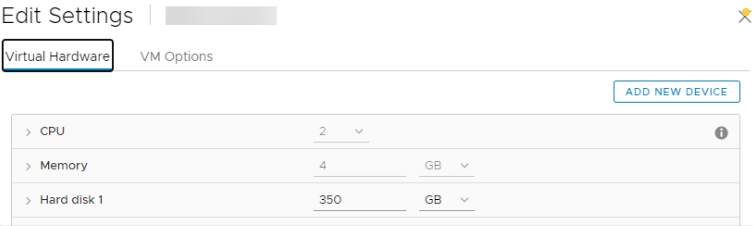
If you are not able to modify the size of the disk, the provisioned size setting is greyed out. This can happen if the virtual machine has a snapshot in place, these will need to be removed prior to making the changes to the disk. Alternatively you may need to shut down the virtual machine if it does not allow you to add or increase disks on the fly, if this is the case make the change then power it back on.
Detect the new disk space
Once the physical disk has been increased at the hardware level, we need to get into the operating system and create a new partition that makes use of this space to proceed.
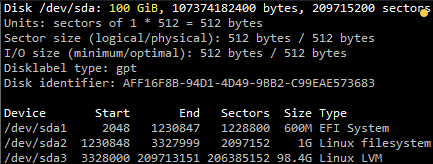
Before we can do this we need to check that the new unallocated disk space is detected by the server, you can use “fdisk -l” to list the primary disk. You will most likely see that the disk space is still showing as the same original size, at this point you can either reboot the server and it will detect the changes on boot or you can rescan your devices to avoid rebooting by running the below command. Note you may need to change host0 depending on your setup.
echo "- - -" > /sys/class/scsi_host/host0/scanBelow is an image after performing this and confirming that the new space is displaying.
Partition the new disk space
As outlined in my previous images the disk in my example that I am working with is /dev/sda, so we use fdisk to create a new primary partition to make use of the new expanded disk space. Note that we do not have 4 primary partitions already in place, making this method possible.
fdisk /dev/sdaWe are now using fdisk to create a new partition, the inputs I have entered in are shown below in bold. Note that you can press ‘m’ to get a full listing of the fdisk commands.
‘n’ was selected for adding a new partition.
Welcome to fdisk (util-linux 2.32.1).
Changes will remain in memory only, until you decide to write them.
Be careful before using the write command.

GPT PMBR size mismatch (209715199 != 734003199) will be corrected by write.
The backup GPT table is not on the end of the device. This problem will be corrected by write.

Command (m for help):
As I already have /dev/sda1, sda2 and sda3 as shown in previous images, I have gone with using ‘4’ for this new partition which will be created as /dev/sda4
Enter the “n” for new partition and enter for the rest of the defaults
Command (m for help): n
Partition number (4-128, default 4):
First sector (209713152-734003166, default 209713152):
Last sector, +sectors or +size{K,M,G,T,P} (209713152-734003166, default 734003166):

Created a new partition 4 of type 'Linux filesystem' and of size 250 GiB.

Command (m for help):
‘p’ to view the current changes in the session
Command (m for help): p
Disk /dev/sda: 350 GiB, 375809638400 bytes, 734003200 sectors
Units: sectors of 1 * 512 = 512 bytes
Sector size (logical/physical): 512 bytes / 512 bytes
I/O size (minimum/optimal): 512 bytes / 512 bytes
Disklabel type: gpt
Disk identifier: AFF16F8B-94D1-4D49-9BB2-C99EAE573683

Device         Start       End   Sectors  Size Type
/dev/sda1       2048   1230847   1228800  600M EFI System
/dev/sda2    1230848   3327999   2097152    1G Linux filesystem
/dev/sda3    3328000 209713151 206385152 98.4G Linux LVM
/dev/sda4  209713152 734003166 524290015  250G Linux filesystem

Command (m for help):
At this point if you do not see the correct added space on /dev/sda4 you will need to reboot the server.
As you can see the new partition of 150gb is a 8e meaning a Linux file system which is correct, older version we needed to change this.
‘w’ is used to write the table to disk and exit, basically all the changes that have been done will be saved and then you will be exited from fdisk.
Command (m for help): w
The partition table has been altered.
Syncing disks.
You will see a warning which basically means in order to use the new table with the changes a system reboot is required. If you can not see the new partition using “fdisk -l” you may be able to run “partprobe -s” to rescan the partitions. In my test I did not require either of those things at this stage (I do a reboot later on), straight after pressing ‘w’ in fdisk I was able to see the new /dev/sda3 partition of my 10gb of space as displayed in the below image.
That’s all for partitioning, we now have a new partition which is making use of the previously unallocated disk space from the increase in VMware.
Increasing the logical volume
We use the pvcreate command which creates a physical volume for later use by the logical volume manager (LVM). In this case the physical volume will be our new /dev/sda4 partition.
pvcreate /dev/sda4Physical volume "/dev/sda4" successfully created.
Next we need to confirm the name of the current volume group using the vgdisplay command. The name will vary depending on your setup, for me it is the name of my test server. vgdisplay provides lots of information on the volume group, I have only shown the name and the current size of it for this example.
vgdisplay| --- Volume group --- VG Name rl System ID Format lvm2 Metadata Areas 1 Metadata Sequence No 3 VG Access read/write VG Status resizable MAX LV 0 Cur LV 2 Open LV 2 Max PV 0 Cur PV 1 Act PV 1 VG Size 98.41 GiB PE Size 4.00 MiB Total PE 25193 Alloc PE / Size 25193 / 98.41 GiB Free PE / Size 0 / 0 VG UUID 16Qr51-iLg8-HDNB-MkUc-TB5c-dL9j-rnpHUE |
Now we extend the ‘rl’ volume group by adding in the physical volume of /dev/sda4 which we created using the pvcreate command earlier.
vgextend rl /dev/sda4Volume group "rl" successfully extended
Using the pvscan command we scan all disks for physical volumes, this should confirm the original /dev/sda5 partition and the newly created physical volume /dev/sda4
pvscan| PV /dev/sda3 VG rl lvm2 [98.41 GiB / 0 free] PV /dev/sda4 VG rl lvm2 [<250.00 GiB / <250.00 GiB free] Total: 2 [<348.41 GiB] / in use: 2 [<348.41 GiB] / in no VG: 0 [0 ] |
Next we need to increase the logical volume (rather than the physical volume) which basically means we will be taking our original logical volume and extending it over our new partition/physical volume of /dev/sda4.
Firstly confirm the path of the logical volume using lvdisplay. This path name will vary depending on your setup.
lvdisplay| --- Logical volume --- LV Path /dev/rl/root LV Name root VG Name rl LV UUID mb2gT4-2oqM-8icq-B8S6-A3lZ-9Ivi-scDZqS LV Write Access read/write LV Creation host, time server01, 2022-10-08 19:34:32 -0400 LV Status available # open 1 LV Size 94.45 GiB Current LE 24180 Segments 1 Allocation inherit Read ahead sectors auto - currently set to 8192 Block device 253:0 --- Logical volume --- LV Path /dev/rl/swap LV Name swap VG Name rl LV UUID NWNCL3-rzD7-av3v-lRP0-OQy9-4CcE-phna9T LV Write Access read/write LV Creation host, time server01, 2022-10-08 19:34:33 -0400 LV Status available # open 2 LV Size <3.96 GiB Current LE 1013 Segments 1 Allocation inherit Read ahead sectors auto - currently set to 8192 Block device 253:1 |
The logical volume is then extended using the lvextend command.
lvextend /dev/rl/root /dev/sda4| Size of logical volume rl/root changed from 94.45 GiB (24180 extents) to <344.45 GiB (88179 extents). Logical volume rl/root successfully resized |
There is then one final step which is to resize the file system so that it can take advantage of this additional space, this is done using the xfs_growfs command. Note that this may take some time to complete, it took about 30 seconds for my additional space.
xfs_growfs /dev/rl/root| meta-data=/dev/mapper/rl-root isize=512 agcount=4, agsize=6190080 blks = sectsz=512 attr=2, projid32bit=1 = crc=1 finobt=1, sparse=1, rmapbt=0 = reflink=1 bigtime=0 inobtcount=0 data = bsize=4096 blocks=24760320, imaxpct=25 = sunit=0 swidth=0 blks naming =version 2 bsize=4096 ascii-ci=0, ftype=1 log =internal log bsize=4096 blocks=12090, version=2 = sectsz=512 sunit=0 blks, lazy-count=1 realtime =none extsz=4096 blocks=0, rtextents=0 data blocks changed from 24760320 to 90295296 |
That’s it, now with the ‘df’ command we can see that the total available disk space has been increased.
df -h| Filesystem Size Used Avail Use% Mounted on devtmpfs 1.8G 0 1.8G 0% /dev tmpfs 1.8G 0 1.8G 0% /dev/shm tmpfs 1.8G 8.7M 1.8G 1% /run tmpfs 1.8G 0 1.8G 0% /sys/fs/cgroup /dev/mapper/rl-root 345G 85G 260G 25% / /dev/sda2 1014M 319M 696M 32% /boot /dev/sda1 599M 5.8M 594M 1% /boot/efi tmpfs 367M 0 367M 0% /run/user/0 |
260gb more drive space, aaaaaaah 🙂
Linux - How to Decrease an LVM Partition
Last verified: October 2026 against the current lvreduce and resize2fs manual pages.
Note: This example was written on CentOS 7 (now end of life); the same LVM and ext4 commands apply on RHEL / Rocky Linux 8 and 9. The default file system on these releases is XFS, which cannot be shrunk with these steps, so this example is working with the ext4 file system.
In this example we will work through shrinking logical volume /dev/centos/var from 10GB to 5GB.
Overview of Logical Volume Manager (LVM)
Before working through the resizing process it’s important you first understand some basic concepts around physical volumes, volume groups, logical volumes, and the file system.
-
Physical Volume (PV): This can be created on a whole physical disk (think /dev/sda) or a Linux partition.
-
Volume Group (VG): This is made up of at least one or more physical volumes.
-
Logical Volume (LV): This is sometimes referred to as the partition, it sits within a volume group and has a file system written to it.
-
File System: A file system such as ext4 will be on the logical volume.
LVM Resize – How to decrease or shrink the logical volume
To decrease the size of an LVM partition you must first decrease the file system within in order to avoid possible data corruption. As there is the potential for this to happen if you enter the command incorrectly, it is strongly recommended that you have a full backup of your data before proceeding. Shrinking a logical volume will give you more space in the volume group, meaning that you could instead extend another logical volume with this new found space.
The first step will depend on if you’re looking to shrink a LVM root volume, or non-root volume.
Shrinking a root volume
The root volume would typically be the logical volume that is mounted to /. You cannot unmount this to shrink it as it’s in use by the running operating system meaning that you will have to first boot from a Live CD to complete this. Once booted into the Live CD, you may first need to run the below command to pick up LVM volumes, however this usually happens during boot so may not be required, if in doubt just run it.
vgchange -a yShrinking a non-root volume
Alternatively if the volume you are shrinking is a non-root volume, that is any other volume not mounted to the root of the file system, you can unmount the volume as shown below to proceed. Please note that when you unmount the volume the data will not be available, so you may need to schedule down time and stop running applications that use data from it prior to unmounting. Unmount by specifying either the logical volume or the location it’s currently mounted to, in the below example we specify the logical volume which can be found in /dev/(vg-name)/(lv-name).
umount /dev/centos/varAll following steps now apply to both a root or non-root volume.
Before being able to attempt to shrink the size of an LVM volume, you must first run a file system check on it. If you don’t do this, you will get an error message and will not be able to proceed. This is a required step as resizing a file system in a bad state could cause data corruption. The -f flag makes the check run even if the file system appears clean, while -y assumes yes to all questions and will respond if asked to fix a problem.
e2fsck -fy /dev/centos/varNext you need to shrink the file system, to be safe we’re going to shrink the file system lower than what the logical volume will shrink to. This is because we don’t want to accidentally shrink the logical volume to a size lower than the file system in the next step, as this can result in corruption and data loss. Don’t worry, we’ll reclaim the space at the end.
The command below will shrink the file system so that it is only 4G in size total, note that what ever size you specify to shrink to you must have in free space within the file system otherwise you must first delete data.
resize2fs /dev/centos/var 4GOnce the file system has been reduced, we can shrink the size of the logical volume with the lvreduce command. Reduce this to the size that you want the volume to be, as specified by the -L flag. Instead if you want to reduce by a specified size, simply put a - in front of the size. Both are shown below for completeness, however you only need to run one.
To reduce to 5G
lvreduce -L 5G /dev/centos/varTo reduce by 5G
lvreduce -L -5G /dev/centos/varAlternative: lvreduce -r (--resizefs) resizes the file system together with the logical volume using fsadm, for example lvreduce -r -L 5G /dev/centos/var. The manual steps on this page give you more control.
Once you execute the lvreduce command you will get a warning advising the size you have chosen to reduce to so use this as a chance to confirm you’re shrinking the logical volume to a size that is NOT smaller than the size you previously shrunk the file system to. Once you have confirmed it’s fine to proceed enter ‘y’ and press enter.
After the logical volume has been lowered to the required size, run resize2fs on the volume as this will extend the file system to use all available space within the logical volume. This makes use of all remaining free space so that none is wasted from when we previously shrunk the file system to a lower size than the logical volume.
resize2fs /dev/centos/varAt this point all that’s left to do is mount the volume. If this was a root volume and you’re working within a Live CD, simply boot back into your primary Linux operating system.
If this was a non-root volume and you unmounted it to complete the reduction, simply mount it back. You can do this with ‘mount -a’ assuming you have the configuration already set in /etc/fstab, otherwise specify the logical volume and where it should mount to. Here we’re manually mounting to /mnt just for testing.
mount /dev/centos/var /mntAfter you’ve either booted back to primary operating system or completed the mount, check the space shown with the ‘df’ command to confirm it has been decreased as expected.
[root@CentOS7 /]# df -h
Filesystem               Size  Used Avail Use% Mounted on
/dev/mapper/centos-root  9.8G  1.4G  8.5G  14% /
devtmpfs                 908M     0  908M   0% /dev
tmpfs                    914M     0  914M   0% /dev/shm
tmpfs                    914M  8.6M  905M   1% /run
tmpfs                    914M     0  914M   0% /sys/fs/cgroup
/dev/sda1                497M   96M  402M  20% /boot
/dev/mapper/centos-var  4.8G   20M  4.6G   1% /mnt
In this example /dev/centos/var is correctly showing as shrunk down from the original 10G.
Sources
- https://man7.org/linux/man-pages/man8/lvreduce.8.html
- https://man7.org/linux/man-pages/man8/resize2fs.8.html
- https://www.rootusers.com/lvm-resize-how-to-decrease-an-lvm-partition/
Linux - Re-Mapping Drives or Combining Drives
The document is walk you through the re-mapping or combining of mapped drives on a Linux server.
This is to make the root drive aka "/" drive one drive to be able to use the space of the full drive.
First you will have to look at the current setup
sudo fdisk -lRedHat - Install NFS Shares
NFS Server Configuration
Install NFS Utilities.
sudo dnf install nfs-utilsCreate the Shared Directory.
sudo mkdir -p /nfs/exports/myshare(Replace /nfs/exports/myshare with your desired path.)
Configure NFS Exports: Edit the /etc/exports file to define the directories to be shared and the clients allowed to access them.
sudo nano /etc/exportsAdd a line similar to this, replacing client_ip_address with the actual IP address or hostname of your NFS client:
/nfs/exports/myshare client_ip_address(rw,sync,no_root_squash)rw: Read/write access.
sync: Synchronous writes to disk.
no_root_squash: Prevents root user on the client from being squashed to an anonymous user on the server. Use with caution.
Apply Export Configuration.
sudo exportfs -ravStart and Enable NFS Services.
sudo systemctl enable --now rpcbind nfs-serverConfigure Firewall: Allow NFS traffic through the firewall.
sudo firewall-cmd --permanent --add-service=nfs
sudo firewall-cmd --permanent --add-service=mountd
sudo firewall-cmd --permanent --add-service=rpc-bind
sudo firewall-cmd --reload
Bash - Add Symbolic Links Subdirectories
Last verified: October 2026 against the GNU find manual (find(1)).
To efficiently add these symbolic links to all subdirectories that are missing them, you can use a find loop. This command will check each subdirectory and only create the link if a file or link named .env or .secret doesn't already exist.
The Command
Run this from the parent directory where your subdirectories are located:
find . -maxdepth 1 -type d ! -path . -exec sh -c '
    cd "$1" || exit
    [ ! -e .env ] && ln -s /mnt/volume1/docker/shared.env .env
    [ ! -e .secret ] && ln -s /mnt/volume1/docker/secret.env .secret
' _ {} \;
Breakdown of the Logic
find . -maxdepth 1 -type d ! -path .: This finds all directories exactly one level down from your current location, excluding the current directory (.) itself.-exec sh -c '...' _ {} \;: This executes a small shell script for every directory found.cd "$1" || exitskips a directory that cannot be entered, so no links are created in the wrong place.[ ! -e .env ]: This is a "logical gate." It checks if the file.envdoes not exist. If it's missing, it proceeds to the&&command to create the link.ln -s [target] [link_name]: Creates the symbolic link.
A Safer Alternative (Dry Run)
If you want to see which directories will be affected before actually making changes, you can use this "echo" version:
find . -maxdepth 1 -type d ! -path . -exec sh -c '
    cd "$1" || exit
    [ ! -e .env ] && echo "Linking .env in $1"
    [ ! -e .secret ] && echo "Linking .secret in $1"
' _ {} \;
Quick Note on Relative vs. Absolute Paths
Since you are using absolute paths for your targets (/mnt/volume1/...), these links will work regardless of which subdirectory they live in. If you ever move the docker folder, you'll need to update the links, but for a fixed mount point like yours, this is the most reliable method.
Add Folder Exceptions
To exclude specific subdirectories, you can use the ! -name test (for simple folder names) or a regular expression with ! -regex (for a longer list).
Here are the two best ways to do it, depending on how many folders you need to skip.
Option 1: Excluding by Folder Name (Simple)
If you just want to skip a few specific folders by name (e.g., backup and logs), use this version. The ! -name "..." tests tell find to ignore those specific directories.
find . -maxdepth 1 -type d ! -path . ! -name "backup" ! -name "logs" -exec sh -c '
    cd "$1" || exit
    [ ! -e .env ] && ln -s /mnt/volume1/docker/shared.env .env
    [ ! -e .secret ] && ln -s /mnt/volume1/docker/secret.env .secret
' _ {} \;
Option 2: Excluding a List (Cleanest for many folders)
If you have a long list of exceptions, you can use a regex pattern. Replace folder1|folder2|folder3 with the names of the directories you want to skip. -regex matches the whole path (for example ./folder1), so the pattern starts with .*/, and -regextype posix-extended must come before it so that | and the parentheses work.
find . -maxdepth 1 -type d ! -path . -regextype posix-extended ! -regex '.*/(folder1|folder2|folder3)' -exec sh -c '
    cd "$1" || exit
    [ ! -e .env ] && ln -s /mnt/volume1/docker/shared.env .env
    [ ! -e .secret ] && ln -s /mnt/volume1/docker/secret.env .secret
' _ {} \;
Pro-Tip: The "Dry Run"
I highly recommend running a "Dry Run" first to verify your exceptions are working correctly. This will print the folders it would have acted on without actually creating any links:
find . -maxdepth 1 -type d ! -path . ! -name "exclude_me" -exec echo "Processing: {}" \;
find . -maxdepth 1 -type d ! -path . -regextype posix-extended ! -regex '.*/(folder1|folder2|folder3)' -exec echo "Processing: {}" \;
Key Flags Used
! -name "folder": Tells find: "Do NOT include items with this name."! -regex '...': Do NOT include items whose whole path matches the pattern (use with-regextype posix-extended).! -path .: Prevents the command from trying to create links in the current parent directory (which would fail anyway since.envlikely already exists there).-maxdepth 1: Ensures the command only looks at the folders right in front of you, rather than digging into sub-sub-directories.
Sources
Linux - How to use rClone
Last verified: October 2026 against the rclone documentation (current release v1.75.1); the filter and symlink behaviour was tested with rclone v1.75.1.
Here's how to get rclone doing what rsync was doing, but with real parallelism.
1. Install it
sudo -v ; curl https://rclone.org/install.sh | sudo bashor via a package manager (dnf install rclone, apt install rclone, brew install rclone, etc.). The rclone docs note that distribution packages are often out of date, so the install script or the official binaries are the better way to get the current version.
2. Configure a remote
Rclone needs a "remote" config pointing at your server. For an SSH target the SFTP backend is the simple option: it works over your existing SSH setup, no extra service needed.
rclone configWalk through the prompts:
nfor new remote- name it, e.g.
myserver - type:
sftp - host:
server.example.com - user:
root - port: 22 (default)
- leave the rest default, use SSH agent or key auth if you have it set up
Or skip the wizard and write it directly to ~/.config/rclone/rclone.conf:
[myserver]
type = sftp
host = server.example.com
user = root
Or use the inline command to create the config file
Run this single command (replace YOUR.SERVER.IP with the real IP or hostname):
rclone config create myserver sftp host=YOUR.SERVER.IP user=root pass=$(rclone obscure 'YOUR_PASSWORD')After it finishes, test the connection (lsd lists only the top-level directories; ls would list every file on the server recursively):
rclone lsd myserver:/3. Run the sync
rclone sync /path/to/source/ myserver:/path/to/dest/ \
  --progress \
  --transfers=32 \
  --checkers=32
Key flags, and why:
sync— makes the destination match the source, including deleting extra files on the destination (likersync -a --delete). Usecopyinstead if you don't want deletions, and try--dry-runfirst.--transfers=32— number of files transferred in parallel. This is the big one for many-small-files workloads; rsync can't do this natively. Tune based on file count/CPU — 16–64 is a common range.--checkers=32— parallel workers for comparing file existence/size/hash before transfer.--progress— live stats, like rsync's-P.
4. Useful additions
rclone sync /path/to/source/ myserver:/path/to/dest/ \
  --progress \
  --transfers=32 \
  --checkers=32 \
  --stats=5s \
  --stats-one-line \
  --exclude ".git/**" \
--dry-run--dry-run— test first, see what would change without touching anything--stats=5s --stats-one-line— periodic compact progress instead of a wall of text--exclude— same idea as rsync's exclude patterns--checksum— only if you need content-based comparison instead of size+mtime (same cost tradeoff as rsync's-c)
Pulling a Synology share to a local disk, with settings for a LAN and for a WAN link. To skip Synology's system folders (such as @eaDir and #recycle), exclude the folder and its contents with /**; a bare --exclude "#recycle" only matches a file with that name, so the folder's contents would still be copied.
#LAN
rclone sync myserver:/mnt/volume1/data_syno /mnt/volume1/data/ \
  --exclude "@*" \
  --exclude "@*/**" \
  --exclude "#recycle/**" \
  --multi-thread-streams=16 \
  --buffer-size=128M \
  --transfers=16 \
  --progress \
  --checkers=32 \
  --sftp-concurrency=128 \
  --log-level=INFO \
  --stats=10s
#WAN
rclone sync myserver:/mnt/volume1/data_syno /mnt/volume1/data/ \
--exclude "@*" \
--exclude "@*/**" \
--exclude "#recycle/**" \
--multi-thread-streams=4 \
--buffer-size=64M \
--transfers=8 \
--progress \
--checkers=16 \
--sftp-concurrency=64 \
--bwlimit=20M \
--log-level=INFO \
--stats=30sEach continued line must end with a backslash \. --fast-list is left out because the SFTP backend does not support the ListR feature it relies on, so it has no effect there. --sftp-concurrency=64 is already the default.
5. If SFTP itself is the bottleneck
SFTP-over-SSH still has per-file protocol overhead. For raw speed on a trusted LAN, rclone also supports:
type = localon both ends if you mount the remote filesystem (NFS/etc.) — no protocol overhead at all- Running an
rclone servedaemon on the destination for a lighter native protocol
But for your use case (SSH between two Linux boxes), the SFTP backend with high --transfers is usually the easy win — try it and compare wall-clock time against your rsync run.
Multiple excludes
Repeat the --exclude flag once per pattern:
rclone sync /path/to/source/ myserver:/path/to/dest/ \
  --progress \
  --transfers=32 \
  --checkers=32 \
  --exclude "Revision/**" \
  --exclude "ftpDataSite/**" \
  --exclude "Backups/**"
The /** matches the folder and everything under it, anywhere in the tree. If these folders only live at the top level (not nested elsewhere), you can anchor them:
--exclude "/Revision/**" --exclude "/ftpDataSite/**" --exclude "/Backups/**"(leading / means "relative to the sync root only")
If the list grows, it's cleaner to use a file instead of repeated flags:
# excludes.txt
Revision/**
ftpDataSite/**
Backups/**
rclone sync /path/to/source/ myserver:/path/to/dest/ \
--progress --transfers=32 --checkers=32 \
--exclude-from excludes.txtYou can test what's actually getting matched with:
rclone sync ... --exclude-from excludes.txt --dry-run -vvSymlinks
This is the part worth being careful about — rclone's symlink behaviour differs from rsync's.
By default, rclone does not copy symlinks: it skips them and logs a notice for each one ("Can't follow symlink without -L/--copy-links"). Your options:
Follow symlinks and copy the actual file/directory contents (like rsync's -L):
--copy-linksUse this if you want the symlink target's real content transferred instead of a symlink pointer — e.g., if the destination server can't resolve the same symlink targets your source can.
Store symlinks as .rclonelink files (-l / --links):
--linksWith an SFTP destination this does not create real symlinks. Each link is stored as a small text file named <name>.rclonelink that contains the link target. Copying those files back to a local disk with --links turns them into symlinks again. That makes it useful for backups you will restore with rclone, but not for a live copy of the tree. --links cannot be combined with --copy-links.
Skip symlinks without the notices — skipping is the default; --skip-links only suppresses the per-link messages, which is worth being explicit about in scripts:
--skip-linksThere is no exact equivalent of rsync's -a (real symlinks recreated on the destination) for an SFTP destination. If the symlinks must stay real links, keep using rsync for that tree, or use --copy-links if copying the target contents is acceptable:
rclone sync /path/to/source/ myserver:/path/to/dest/ \
  --progress \
  --transfers=32 \
  --checkers=32 \
  --exclude-from excludes.txt \
  --copy-links
Worth doing a --dry-run -vv first to confirm rclone reports handling the links the way you expect, especially if any of your symlinks point outside the source folder or are broken/dangling.
Note Worthy
Fix: add the host key to known_hosts
ssh-keyscan server.example.com >> ~/.ssh/known_hostsOr just SSH to it manually once and accept the fingerprint interactively (safer, because you can check the fingerprint):
ssh root@server.example.com(type yes when prompted, then exit)
Important: the hostname in known_hosts has to match what rclone connects to.