Server Hardware (HPE & Dell)
Firmware, management and driver notes for HPE and Dell hardware.
- HPE - iLO4 Reflash after Not Responsive 380p Gen8
- HPE - ProLiant DL380p Gen8 GPU Install
- Dell - Hard Drive Capacity Difference Between Drives
- DELL - XPS Killer Wifi
HPE - iLO4 Reflash after Not Responsive 380p Gen8
iLO 4 firmware in Direct Mode
Download Online ROM Flash Component for Linux - HPE Integrated Lights-Out 4 (CP######.scexe)
Attached is 2.82 version of iLO4 CP053894.scexe
Download Service Pack for ProLiant 2016+ (search on torrents) version 8.1 or use this ISO
Using HP USB Key Utility for Windows, we create a bootable flash drive from the SPP image.
For Windows use RUFUS https://rufus.ie/en/ to create a usb boot from the SPP .iso file
For Linux installation use https://unetbootin.github.io/ to create a usb boot
Copy CP053894.scexe to the finished flash drive in /hp/swpackages
Turn off the power, remove the case. On the system board, find the main dip switch (System maintenance switch) and turn the first (S1) switch to the ON position
Load the server from the SPP flash drive
Once on the image screen you need to select Interactive mode and when the main menu loads very slowly
press ctrl + alt + d + b + x to launch the console
Run:
You need to enter a simple magic command:
rmmod hpilo
then Run:
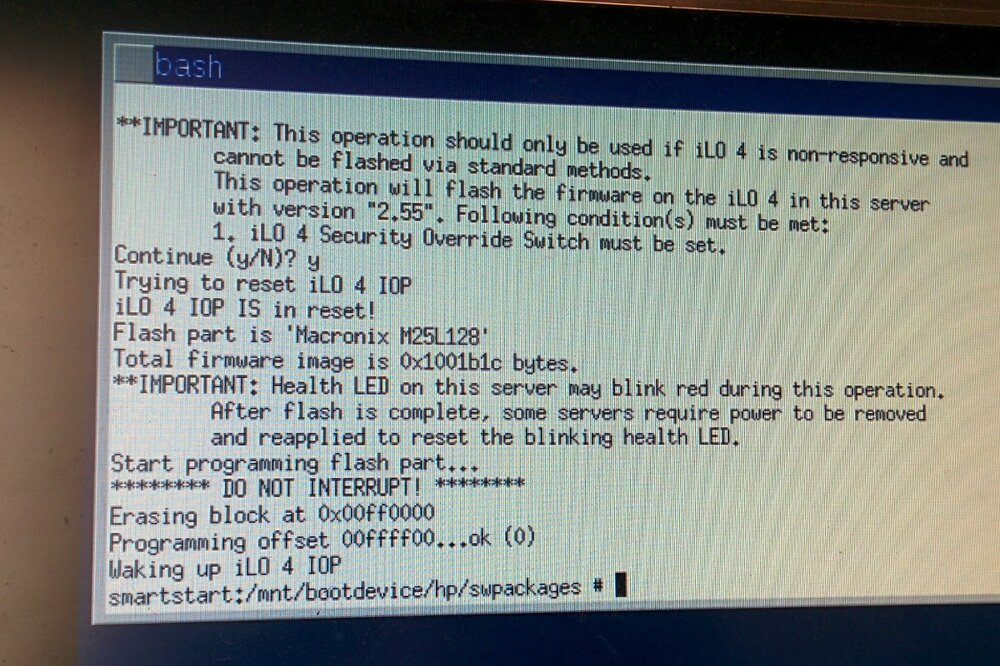
sh /mnt/bootdevice/hp/swpackages/CP027578.scexe --direct
After successful iLO flashing, turn off the power and return the first (S1) switch back (OFF).
HPE - ProLiant DL380p Gen8 GPU Install
Supported GPUs for the HP ProLiant DL380p Gen8 are limited by the server's specific PCIe risers, 225W power constraints, and passive cooling requirements. Official and community-tested options include the NVIDIA GRID K1, K2, Tesla P100, Quadro K6000, or consumer cards like the NVIDIA Tesla M4/M60
Because the DL380 G8 requires specific hardware components for proper installation, you will need to pay attention to the following details:
- Hardware & Riser Kits: You will need the HP Double Wide Riser Cage Kit (
662885-B21) and the Secondary GPU Riser (728543-B21) to accommodate double-wide or full-height GPUs. - Power Cables: Standard server power cables will not fit most NVIDIA GPUs. You will need a custom 10-pin to 8-pin GPU power cable to draw power from the motherboard.
- Power Supply: Operating dual GPUs requires dual 1200W power supply units (PSUs) and two physical processors installed
- BIOS Configuration: For advanced GPUs (like the Tesla P100), you must enter the BIOS, press Ctrl + A at the main screen to reveal the "Service Options," and enable PCI Express 64-bit BAR Support.
- iLO & POST Issues: Many modern GPUs (like RTX series) can trigger POST code 5808, halting the boot process. Ensure your server has the latest BIOS update and iLO firmware to minimize compatibility issues.
- Card Compatibility: The server officially supports specific enterprise cards like the NVIDIA Quadro K4000/K5000/P2000 and Grid K1/K2. Consumer cards (like the GTX 1050, GTX 1650, or RTX series) often require BIOS modifications, external power adapters, and custom chassis modification
Dell - Hard Drive Capacity Difference Between Drives
The capacity difference between the two drives is caused by differing logical block/sector formatting or OEM vendor provisioning (HPA / Max LBA limits).
Even within the same Western Digital / Ultrastar DC HC520 12TB family, SAS drives are deployed with different low-level format structures:
1. Different Sector Formats (512e vs. 4Kn vs. Enterprise 520/528 Bytes)
-
Standard 12TB: Typically reports around 11,175.5 GB ($11.17\text{ TiB}$) when formatted with standard 512-byte emulation (
512e) or 4096-byte native (4Kn) sectors. -
Enterprise SAN/EMC Formats: Drives pulled from proprietary SAN enclosures (EMC, NetApp, Huawei) often use 520-byte or 528-byte sectors (or Type 1/2 Data Integrity Field protection). When translated or truncated by a Dell PERC/HBA, the usable LBA count drops, showing up around 10,948.5 GB.
2. OEM Firmware & Provisioning (HPA / Max LBA)
If one drive came from an OEM vendor (e.g., NetApp, EMC, Cisco, HPE) and the other is a generic Dell/retail drive, the OEM firmware may restrict the drive's total accessible Logical Block Addressing (LBA) count via Host Protected Area (HPA) or factory provisioning.
How to Fix / Match Them
To get disk 0:1:3 to match 0:1:4 at full capacity:
-
Check the Sector Size:
Boot into a Linux live environment (or pass the drive through via HBA/IT-mode) and run:
Bashsmartctl -i /dev/sdX # or sg_scan -iCheck the
Logical block sizeandFormatted with type 1/2/3 protectionvalues. -
Low-Level Format to Standard 512e / 4Kn:
Using the
sg3_utilspackage in Linux, reformat the drive to standard 512-byte or 4096-byte sectors:Bash# Reformat to standard 512-byte sectors: sg_format --format --size=512 /dev/sdX(Note: This is a low-level format that will erase all data on that specific disk and takes several hours for a 12TB drive.)
-
Reset Max LBA (if sector size is already 512):
ATA/SATA drives only.
hdparm -Nsends ATA commands, so on a SAS drive (like the HC520 SAS) it fails with 'SG_IO: bad/missing sense data, sb[]: 72 05 20 ...' (Illegal Request, invalid command) and prints bogus output like 'max sectors = 0/513, HPA is enabled'. Ignore that; SAS drives have no HPA. Use step 4 instead.If the drive was already 512 bytes, reset any HPA/LBA clamp:
Bashhdparm -N /dev/sdX # To restore full native capacity: hdparm -N p[max_lba_value] /dev/sdX -
SAS drives: verify and fix capacity with sg3_utils
Find the right device first (sg numbers can change after a reboot):
lsscsi -g
# or
sg_scan -i
Check capacity and protection:
sg_readcap --long /dev/sgXA full 12TB HC520 at 512-byte sectors shows: Number of logical blocks=23437770752, Logical block length=512 bytes, prot_en=0, Device size 12.00 TB (about 11175.5 GB in the PERC).
If the block count is short (sg_format keeps the existing block count when the sector size doesn't change), resize to the maximum. This takes seconds, not hours:
sg_format --resize --count=-1 /dev/sgXIf prot_en=1 (Type 1/2 protection still on, which PERC controllers often reject), do a full format that clears protection and sets max size:
sg_format --format --size=512 --fmtpinfo=0 --count=-1 /dev/sgX -
Get the PERC to pick up the new size
Power-cycle the server (or rescan), then in the PERC config utility or iDRAC storage page clear any foreign config on the drive and confirm it shows 11175.5 GB before adding it to a virtual disk.
-
Optional: format to 4096-byte native sectors (4Kn)
Before you start, check that everything using the drive supports 4Kn. Don't mix 4Kn and 512e drives in the same PERC virtual disk; to boot from a 4Kn disk the server must use UEFI, not BIOS mode; and some older OS and hypervisor versions don't support 4Kn disks.
SAS drives (sg3_utils). This erases the whole drive and takes several hours on a 12TB disk:
lsscsi -g        # confirm the right /dev/sgX first
sg_format --format --size=4096 --fmtpinfo=0 /dev/sgX
When the sector size changes, sg_format sets the block count to the drive's maximum on its own, so --count isn't needed.
Verify:
sg_readcap --long /dev/sgXA full 12TB HC520 at 4Kn shows: Logical block length=4096 bytes, Number of logical blocks=2929721344, prot_en=0, Device size 12.00 TB (the same total size as 512e, just one-eighth the number of blocks).
SATA drives: sg_format doesn't apply. If the drive's firmware supports changing the sector size, use:
hdparm -I /dev/sdX | grep -i 'sector size'
hdparm --set-sector-size 4096 --please-destroy-my-drive /dev/sdX
If hdparm says it isn't supported, the drive's sector size can't be changed this way.
Then do step 5 again (power-cycle, clear foreign config, confirm the size in the PERC).
-
Check for and handle bad sectors (SAS)
A full sg_format already certifies every sector and remaps bad ones to spare sectors (reallocation). Remapped sectors go on the drive's grown defect list. They can't be recovered, but they stop causing errors.
Keep certification on during the format (it's the default, so don't add --ffmt or --dcrt):
sg_format --format --size=4096 --fmtpinfo=0 /dev/sgXAfter the format, check the grown defect list and error counters:
sg_reassign --grown /dev/sgX
smartctl -a /dev/sgX
In the smartctl output, check 'Elements in grown defect list' and the read/write 'Total uncorrected errors' values.
Optional full read test (more than 20 hours on a 12TB drive):
smartctl -t long /dev/sgX
smartctl -l selftest /dev/sgX   # check the result after it finishes
To remap one specific bad LBA by hand (this erases the data in that block):
sg_reassign --address=<LBA> /dev/sgXRule of thumb: a few dozen grown defects that stay the same over time is fine. If the count keeps going up, or there are any uncorrected errors, the drive is failing and should be replaced instead of reused.
Once reformatted, the Dell PERC controller will detect 0:1:3 at the full 11175.5 GB size.
DELL - XPS Killer Wifi
I was only getting 1.5mb transfer and 60mb web download
WARNING -- Changing the registry can break your machine if done wrong!!! Do so at your own risk!
I had (sounds like) the same WiFi issues you are having. I was able to "fix" it with a registry hack. Go to this key Computer\HKEY_LOCAL_MACHINE\SYSTEM\CurrentControlSet\Control\Power\PowerSettings\19cbb8fa-5279-450e-9fac-8a3d5fedd0c1 and create a value (if not there) Attributes with a DWORD value of 2.
Go a little further down, under the above key to Computer\HKEY_LOCAL_MACHINE\SYSTEM\CurrentControlSet\Control\Power\PowerSettings\19cbb8fa-5279-450e-9fac-8a3d5fedd0c1\12bbebe6-58d6-4636-95bb-3217ef867c1a\DefaultPowerSchemeValues\381b4222-f694-41f0-9685-ff5bb260df2e and add the same Attributes value here or set it to 2 if it's already there. Under this key, change the DCSettingIndex to 0 (zero) to match the ACSettingIndex.
This makes the WiFi card use full power on battery under the Balanced Power Plan which is the default plan.
Also mentioned in my previous posts was to remove all the Killer software and use the Intel drivers instead. The current version works fine. Of course download the Intel drivers before removing the Killer stuff. This did not fix the issue by itself but trust the Intel drivers more.