VMware vSphere & ESXi
Installing, upgrading and managing VMware vSphere and ESXi hosts.
- VMWare - Delete inaccessible datastore
- VMWare - Install Windows 11 on vCenter 8 without TMP 2.0
- VMWare - Copy and Paste from Console to VM
- VMWare - Fix VMware View Horizon the redo log of .vmdk is corrupt
- ESXi - UPS Nut Installation
VMWare - Delete inaccessible datastore
Rename the store
Use the web client to rename each store and a DEL in front of the name
Access the shell of the appliance server and then the database
VMware vCenter Server 8.0.2.00300

Type: vCenter Server with an embedded Platform Services Controller

Connected to service
* List APIs: "help api list"
* List Plugins: "help pi list"
* Launch BASH: "shell"

Command> shell
Shell access is granted to root
root@vcenter [ ~ ]#
shell;/opt/vmware/vpostgres/current/bin/psql -d VCDB -U postgresView the stores
This will give you the ID that is needed to clean up
SELECT * FROM vpx_entity; Delete the store
This is the delete for cleaning up the inaccessible datastore
| DELETE FROM vpx_ds_assignment WHERE ds_id=1015; DELETE FROM vpx_datastore WHERE id=1015; DELETE FROM vpx_vm_ds_space WHERE ds_id=1015; DELETE from vpx_entity where id=1015; |
Change the ID and then run the following
DELETE FROM vpx_ds_assignment WHERE ds_id=5015;DELETE FROM vpx_datastore WHERE id=5015;DELETE FROM vpx_vm_ds_space WHERE ds_id=5015;DELETE from vpx_entity where id=5015;Restart the services
\q;service-control --stop --all && service-control --start --allVMWare - Install Windows 11 on vCenter 8 without TMP 2.0
Create a VMWare to host Windows 11 without having a virtual TMP or device installed.
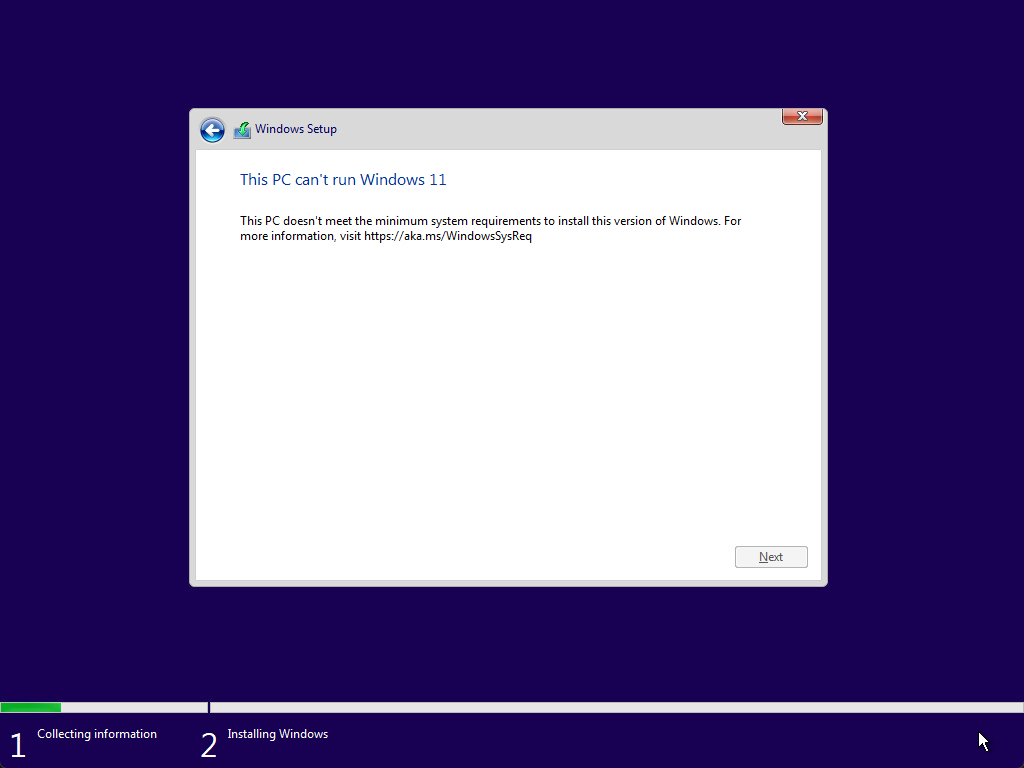
Once you are at this step you have to hit "Shift-F10" to open up the command prompt
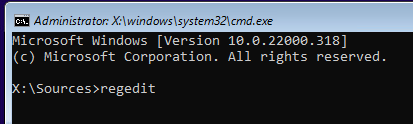
Once the command prompt window is opened type "regedit"
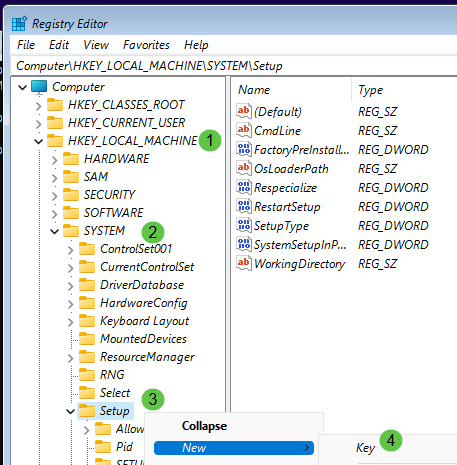
Add the key called "LabConfig" then right-click on the "LabConfig" and add a new "DWORD Value"
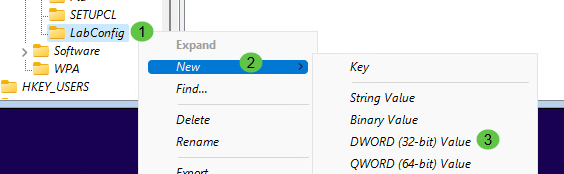
Add the new value called "ByPassTPMCheck" with a hexdecimal of "1"
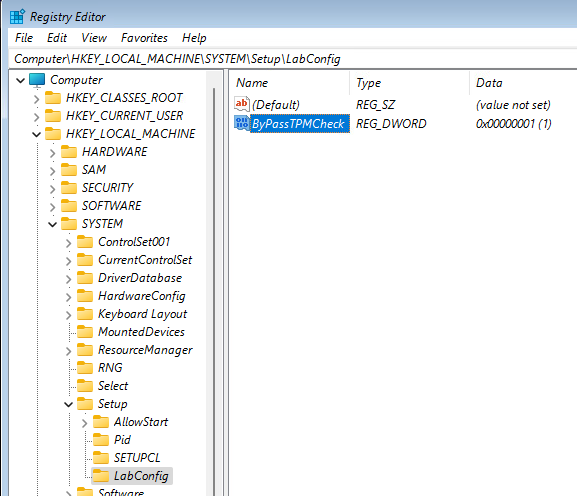
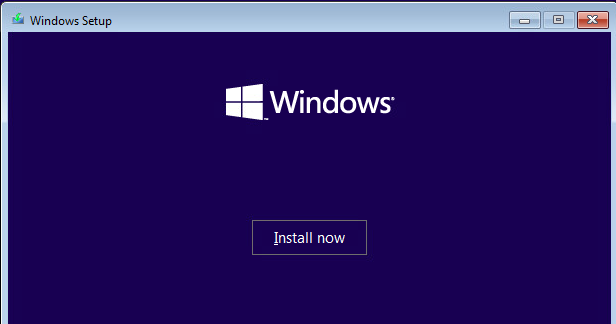
Close every window then click on "Install Now" but do not reboot or the new added key will be lost.
VMWare - Copy and Paste from Console to VM
On any Powered Off VM, click the "Advanced Parameters" tab.
-
-
- Click filter icon of Attribute column. Search for 3 items' names, check if they already exist. If yes, edit their corresponding values. If not, add them from the textboxs above.
Name Value isolation.tools.copy.disableFALSEisolation.tools.paste.disableFALSEisolation.tools.setGUIOptions.enableTRUE - Click "OK".
- Click filter icon of Attribute column. Search for 3 items' names, check if they already exist. If yes, edit their corresponding values. If not, add them from the textboxs above.
-
- Power on the VM
- Then use Copy/Paste directly on Windows/Linux/any other platform.
VMWare - Fix VMware View Horizon the redo log of .vmdk is corrupt
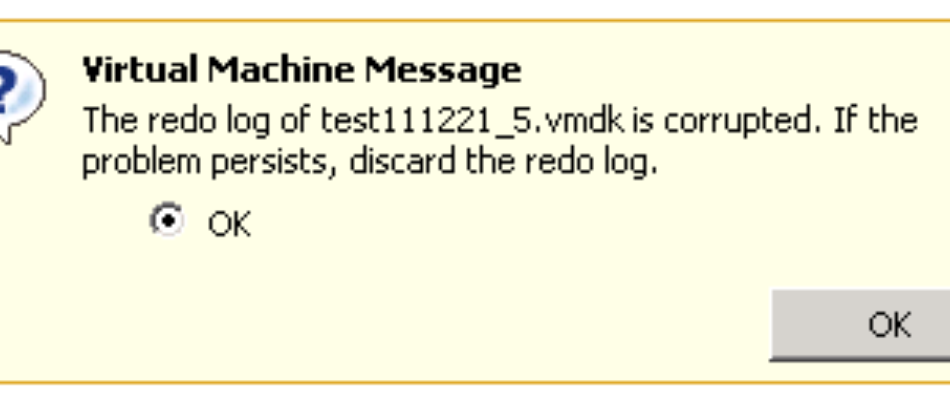
To disable the VAAI on the host follow the following steps:
- Open Vsphere Client and connect to Vcenter Server.
- Navigate to the ESXi Host and then Click on the Configuration Tab.
- Click on Advanced Settings.
- Click on DataMover.
- Change the value of DataMover.HardwareAcceleratedMove setting from 1 to 0.
- Change the value of DataMover.HardwareAcceleratedInit setting from 1 to 0.
- Click on VMFS3.
- Change the value of VMFS3.HardwareAcceleratedLocking setting from 1 to 0.
- Click Ok.
- Repeat the steps 1-9 on all ESXi Hosts in the cluster.
This should resolve the error once and for all. More info about VAAI can be found here.
Source link here
ESXi - UPS Nut Installation
Vmware ESXi NUT Client Installation and Configuration
Requirements
- You must have a NUT server connected to a UPS and configured in your environment.
- SSH must be enabled on your ESXi installation
- Community acceptance level must be enabled on your ESXi installation in order to install the client
Download
Download the latest NutClient-ESXi-x.x.x-x.x.x-offline_bundle.zip package from: https://github.com/rgc2000/NutClient-ESXi/releases.
Install
- Secure copy the NutClient-ESXi-x.x.x-x.x.x-offline_bundle.zip to your ESXi server’s /tmp directory by either using WinSCP/pscp in Windows or scp in Linux.
- Set ESXi Community Acceptance level:
esxcli software acceptance set --level=CommunitySupportedIf you get the following error:
| [AcceptanceConfigError] Secure Boot enabled: Cannot change acceptance level to community. Please refer to the log file for more details. |
You must disable Secure Boot in your computer BIOS and re-try the installation again.
- Install bundle:
esxcli software vib install -d /tmp/NutClient-ESXi-x.x.x-x.x.x-offline_bundle.zip- If installation was successful you should see the following output:
|
Installation Result Message: Operation finished successfully. Reboot Required: false VIBs Installed: Margar_bootbank_upsmon_x.x.x-x.x.x VIBs Removed: VIBs Skipped: |
- You can now delete the files in the /tmp directory and disable the SSH service if desired.
ESXi Configuration
- In the ESXi Web client, navigate to Host —> Manage —> System —> Advanced Settings. In the Search box enter UserVars.Nut (Figure 1).
Figure 1

- Configure the following variables:
NutUpsName: Name of the UPS on the NUT server (in the form of inverter_name@server_name or server_ip). Several inverters can be entered separated by a space. There will be no system shutdown until the last UPS still standing has given the shutdown command.
NutUser: Name of the NUT server login account
NutPassword: NUT Server Connection Account Password
NutFinalDelay: Seconds to wait after receiving the low battery event to shut down the system
NutSendMail: Set to 1 for the NUT client to send an e-mail to each important event of the UPS
NutMailTo: E-mail address to send UPS events to
- In the ESXi Web client, navigate to Host —> Manage —> Services —> NutClient —> Actions —> Policy —> Start and Stop with Host (Figure 2).
Figure 2
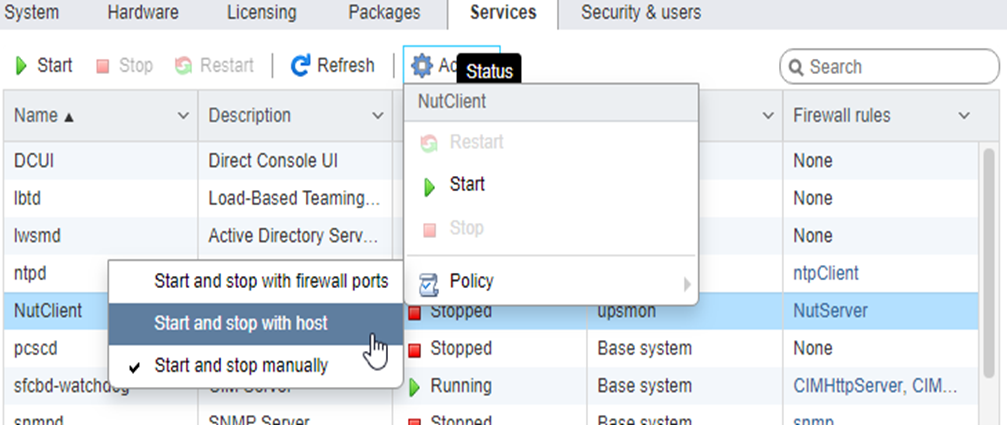
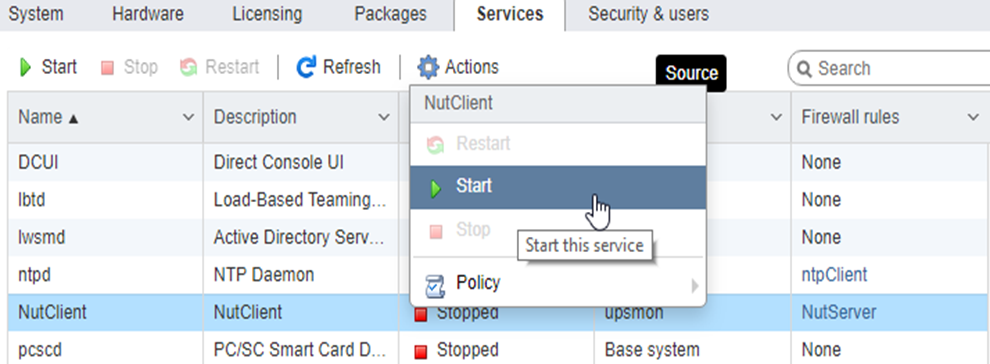
- In the ESXi Web client, navigate to Host —> Manage —> Services —> NutClient —> Actions —> Start (Figure 3).
Figure 3
Tips
- Use the ESXi host configuration tab in the vSphere Client to decide how to start and stop (or suspend) virtual machines. This order will be respected by the UPS shutdown procedure.
- The clean shutdown of the OS in the virtual machines is only possible if the vmware tools are installed.
- To uninstall the NUT client, use the following command:
esxcli software vib remove -n upsmon- To update the NUT client, use the following command:
esxcli software vib update -d /tmp/NutClient-ESXi-x.x.x-x.x.x-offline_bundle.zip- To estimate the time needed for the server to shut down on UPS alert, type the command below on the host ESXi (by ssh or on the console). The shutdown procedure is immediately started:
/opt/nut/sbin/upsmon -c fsd- If the NUT Client is configured correctly, the ESXi /var/log/syslog.log should have a message similar to below where ups@UPSHOST is the ups name and the UPS host you setup earlier :
2019-09-22T13:28:07Z upsmon[2111424]: Communications with UPS ups@UPSHOST established